scroll-page 长列表分页组件
介绍
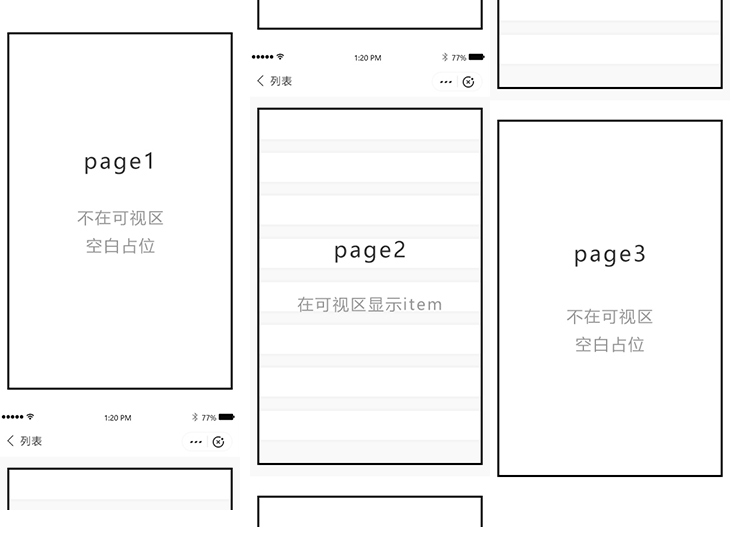
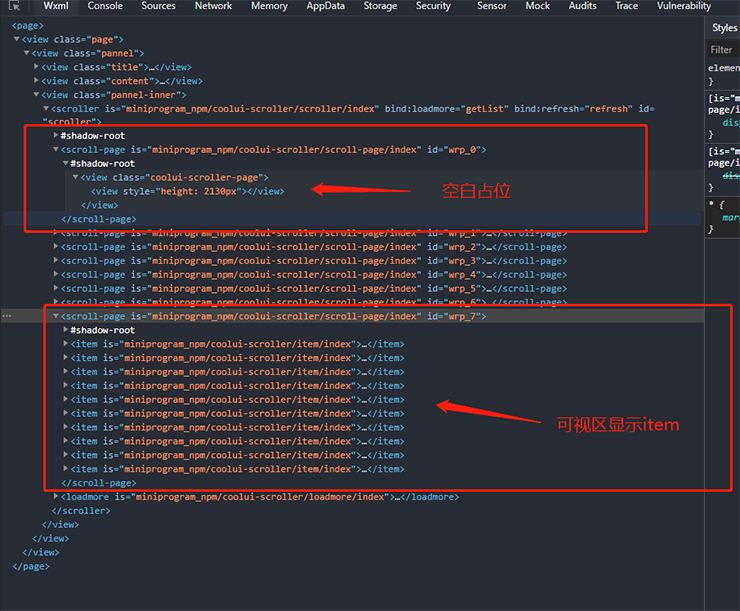
长列表解决方案:将数据分为多个 page 页面(如下图)。每个 page 页面包含列表项 item。计算每个 page 的高度。当 page1 已加载完并且已经划过到可视区上面时,将该 page1 设为当前的 page 高度,并删除里面的列表项 item。完成用一个空的 page 进行占位。这样就减少了过多的列表项 dom。当页面向下滚动时。page1 又进入可视区时,将列表项 item 再还原回来。
为了保证滚动时的连贯性。我们保存了当前可视区及可视区上下两个 page 页面中的列表项。其余 page 中的列表项全部删除,只有滚动到时才显示。这样就保证页面中有且只有三个 page 中有列表项。其余均是空白占位区域。
引入
在app.json或index.json中引入组件
"usingComponents": {
  "scroll-page": "coolui-scroller/scroll-page/index"
}
代码演示
注意:需要引入组件提供的方法来计算每个 page 页面的高度
<scroller
  class="{{(loadMoreSetting.status == 'loading' && list.length == 0) ? 'isloading' : ''}}"
  id="scroller"
  bind:loadmore="getList"
  bind:refresh="refresh"
  isEmpty="{{isEmpty}}"
  background="#f2f2f2"
>
  <refresh slot="refresh" type="default" config="{{defaultSetting}}" />
  <!-- 列表 -->
  <!-- page组件循环页 -->
  <scroll-page
    wx:for="{{ list }}"
    id="wrp_{{pageIndex}}"
    wx:for-index="pageIndex"
    wx:for-item="listSingleItem"
    wx:key="index"
    pageList="{{ listSingleItem }}"
  >
    <!-- item组件循环项 -->
    <item
      wx:for="{{ listSingleItem }}"
      wx:for-index="index"
      wx:for-item="listItem"
      wx:key="index"
    >
      <view class="item">
        <image class="item-image" src="{{listItem.img}}"></image>
        <view class="item-title"
          >{{(pageIndex * 3) + listItem.id}}.{{listItem.title}}</view
        >
      </view>
    </item>
    <!-- item组件循环项 -->
  </scroll-page>
  <!-- page组件循环页 -->
  <!-- 列表 -->
  <!-- 加载更多组件 -->
  <loadmore
    slot="loadmore"
    status="{{loadMoreSetting.status}}"
    loadingText="{{loadMoreSetting.loadingText}}"
    noMoreText="{{loadMoreSetting.noMoreText}}"
    moreText="{{loadMoreSetting.moreText}}"
    color="{{loadMoreSetting.color}}"
  />
  <!-- 加载更多组件 -->
</scroller>// 调用组件提供的方法文件
const utils = require('coolui-scroller/index.js')
Page({
data: {
isEmpty: false,
list: [],
defaultSetting: {
shake: true,
style: 'black', // 设置圆点深色还是浅色
},
loadMoreSetting: {
status: 'more',
moreText: '上拉加载更多',
loadingText: '加载中...',
noMoreText: '-- 到底啦 --',
color: '#999',
},
emptySetting: {
img: '../../img/empty.png',
// img: 'http://www.365editor.com/images/nodata.png',
text: '暂无文章',
},
},
onLoad() {
// 设置缓存全部数据
this.wholeList = []
// 设置当前渲染第几页
this.currentRenderIndex = 0
// 设置缓存每一页页面高度
this.pageHeightArr = []
// 设置总页数
this.totalPageNum = 0
// 设置分页
this.param = {
limit: 4,
page: 0,
}
this.getList()
},
getList() {
const than = this
const loadMoreSetting = than.data.loadMoreSetting
// 判断当前是否为加载状态 防止页面重复添加数据
if (loadMoreSetting.status !== 'loading') {
loadMoreSetting.status = 'loading'
than.setData({
loadMoreSetting,
})
const page = this.param.page
this.currentRenderIndex = page
if (than.totalPageNum > 0 && page == than.totalPageNum) {
const loadMoreSetting = than.data.loadMoreSetting
loadMoreSetting.status = 'noMore'
than.setData({
loadMoreSetting,
})
} else {
// 获取远程数据可换成自己封装的请求方法
wx.request({
url: 'https://coolui.coolwl.cn',
data: {
page: page + 1,
isempty: 0, // 设置为1可测试空数据
limit: 10,
pagenum: 10,
islong: 1,
},
method: 'get',
success(res) {
if (res.data.code === 200) {
than.totalPageNum = res.data.data.last
if (res.data.data.list.length === 0 && page === 0) {
const loadMoreSetting = than.data.loadMoreSetting
loadMoreSetting.status = 'noMore'
than.setData({
isEmpty: true,
loadMoreSetting,
})
} else {
than.wholeList[page] = res.data.data.list
const datas = {}
datas['list[' + page + ']'] = res.data.data.list
than.setData(datas, () => {
// 调用方法设置page页面高度
utils.setHeight(than)
const loadMoreSetting = than.data.loadMoreSetting
loadMoreSetting.status = 'more'
than.setData({
loadMoreSetting,
})
than.param.page += 1
})
}
}
},
})
}
}
},
refresh() {
// 初始化缓存数据
const that = this
this.wholeList = []
this.currentRenderIndex = 0
this.pageHeightArr = []
this.param = {
limit: 4,
page: 0,
}
that.setData({
list: [],
})
// 重新拉取数据
that.getList()
},
})配置
| 参数 | 说明 | 类型 | 默认值 | 版本 |
|---|---|---|---|---|
| pageList | 传入当前 page 分页面的列表数组 | Array | 无 | 3.0.0 |
v4.0.0 更新
v4.0.0 起长列表改为窗口化渲染:只渲染窗口内的页,窗口外折叠为上下两个占位块。
介绍
上面 v3 的写法为「每一页都保留一个 page 组件实例,滚出视口后把列表项 item 换成占位」。当加载的页数足够多时,page 结构本身也会成为卡顿来源:页组件实例与 IntersectionObserver 的数量都会随总页数线性增长(各 N 个)。
v4.0.0 把「窗口」从 item 层扩展到 page 层:
- 只真实渲染窗口内的页(当前可见页 ± 相邻页),窗口外统一折叠为上下两个占位块;
- 页高定位不再使用 IntersectionObserver,改为「滚动距离 + 页高前缀和二分」,O(log N);
- 未测量的页用「已测量页的平均值」估算,滚过后测量回填并自动收敛。
优化了什么
| 项目 | v3.x | v4.0.0 |
|---|---|---|
| 页组件实例 | 每一页一个,随总页数增长(O(N)) | 只渲染窗口内的页,约 3~5 个(O(窗口)) |
| 页高定位 | 每页一个 IntersectionObserver(N 个观察者) | 滚动距离 + 页高前缀和二分,0 个观察者 |
| 窗口外节点 | 每页一个占位节点(N 个) | 折叠为上下两个占位块 |
| 窗口重算 | 由观察者回调触发 | 滚动时按需重算,O(log N) |
页数越多收益越明显:加载 50 页时,节点数由「50 个页组件 + 50 个观察者」降为「约 5 个页组件 + 2 个占位块」;滚动的卡顿主要来自这两项,因此页数多时提升最明显。
使用上的变化
- 不再调用
utils.setHeight:页高测量、占位折叠、窗口计算都由新接口自动完成; - 不再维护
wholeList/pageHeightArr/currentRenderIndex:页面只保留list(分页数据)即可; - 需要多的三个渲染字段:
visiblePages(要真实渲染的页码)、topHeight/bottomHeight(上下占位块高度); - 需要把滚动距离透出:
<scroller bind:scroll="onScroll">,在onScroll中记录scrollTop并重算窗口; - 追加一页数据后调用
updateWindow()(原来是utils.setHeight(this))。
参数变化
新增 utils.computeLonglistWindow(options):纯函数,负责由「滚动距离 + 页高缓存」算出渲染窗口,旧版 setHeight 承担的这部分工作由它接手。
| 参数 | 说明 | 类型 | 默认值 |
|---|---|---|---|
| heights | 已测量的每页高度(未测量项用 estimate 代替) | Array | [] |
| count | 总页数 | Number | 0 |
| scrollTop | 当前滚动距离 | Number | 0 |
| viewportHeight | 可视区高度 | Number | 0 |
| overscan | 前后各多渲染几页 | Number | 1 |
| estimate | 未测量页的估算高度 | Number | 0 |
| 返回值 | { start, end, topHeight, bottomHeight } | Object | - |
heights不需要手工维护:按下面的示例把它挂在this.pageHeights上,测量完成后自动回填;estimate一般不用传:不传时用「已测量页的平均值」估算,一页都没测量过时按 300px 兜底。
代码演示
<scroller
  class="{{(loadMoreSetting.status == 'loading' && list.length == 0) ? 'isloading' : ''}}"
  id="scroller"
  bind:loadmore="getList"
  bind:refresh="refresh"
  bind:scroll="onScroll"
  isEmpty="{{isEmpty}}"
  background="#f2f2f2"
>
  <refresh slot="refresh" type="default" config="{{defaultSetting}}" />

  <!-- 列表:窗口上方占位 -->
  <view wx:if="{{topHeight > 0}}" style="height: {{topHeight}}px"></view>

  <!-- 只渲染窗口内的页 -->
  <scroll-page
    wx:for="{{ visiblePages }}"
    wx:for-item="pageIndex"
    wx:key="*this"
    id="wrp_{{pageIndex}}"
    pageList="{{ list[pageIndex] }}"
  >
    <!-- item组件循环项 -->
    <item
      wx:for="{{ list[pageIndex] }}"
      wx:for-index="index"
      wx:for-item="listItem"
      wx:key="index"
    >
      <view class="item">
        <image class="item-image" src="{{listItem.img}}"></image>
        <view class="item-title"
          >{{(pageIndex * 3) + listItem.id}}.{{listItem.title}}</view
        >
      </view>
    </item>
    <!-- item组件循环项 -->
  </scroll-page>

  <!-- 列表:窗口下方占位 -->
  <view wx:if="{{bottomHeight > 0}}" style="height: {{bottomHeight}}px"></view>

  <!-- 加载更多组件 -->
  <loadmore
    slot="loadmore"
    status="{{loadMoreSetting.status}}"
    loadingText="{{loadMoreSetting.loadingText}}"
    noMoreText="{{loadMoreSetting.noMoreText}}"
    moreText="{{loadMoreSetting.moreText}}"
    color="{{loadMoreSetting.color}}"
  />
</scroller>// 调用组件提供的方法文件
const utils = require('coolui-scroller/index.js')
Page({
data: {
isEmpty: false,
list: [],
// 窗口化渲染:只渲染这些页,其余高度由上下两个占位块撑起
visiblePages: [],
topHeight: 0,
bottomHeight: 0,
defaultSetting: {
shake: true,
style: 'black', // 设置圆点深色还是浅色
},
loadMoreSetting: {
status: 'more',
moreText: '上拉加载更多',
loadingText: '加载中...',
noMoreText: '-- 到底啦 --',
color: '#999',
},
emptySetting: {
img: '../../img/empty.png',
// img: 'http://www.365editor.com/images/nodata.png',
text: '暂无文章',
},
},
onLoad() {
// 设置总页数
this.totalPageNum = 0
// 设置分页
this.param = {
limit: 4,
page: 0,
}
// 每页真实高度缓存(下标 = 页码),由 measureVisible 自动回填
this.pageHeights = []
// 当前滚动距离与可视区高度
this.scrollTop = 0
this.windowHeight = (wx.getWindowInfo && wx.getWindowInfo().windowHeight) || 0
this.getList()
},
// 滚动时重算渲染窗口
onScroll(e) {
this.scrollTop = (e.detail && e.detail.scrollTop) || 0
this.updateWindow()
},
// 计算窗口:只渲染窗口内的页,窗口外折叠成上下两个占位块
updateWindow() {
const count = this.data.list.length
const heights = this.pageHeights || []
// 未测量页的估算高度:用已测量页的平均值(都没有时按 300px 兜底)
let sum = 0
let num = 0
for (let i = 0; i < heights.length; i++) {
if (heights[i] > 0) {
sum += heights[i]
num += 1
}
}
const estimate = num > 0 ? sum / num : 300
const state = utils.computeLonglistWindow({
heights: heights,
count: count,
scrollTop: this.scrollTop || 0,
viewportHeight: this.windowHeight || 0,
overscan: 1,
estimate: estimate,
})
const visiblePages = []
for (let i = state.start; i <= state.end; i++) {
visiblePages.push(i)
}
this.setData(
{
visiblePages: visiblePages,
topHeight: state.topHeight,
bottomHeight: state.bottomHeight,
},
() => {
this.measureVisible(visiblePages)
}
)
},
// 测量窗口内各页真实高度并回填缓存
measureVisible(indexes) {
if (!indexes || !indexes.length) {
return
}
const query = wx.createSelectorQuery().in(this)
indexes.forEach((pageIndex) => {
query.select('#wrp_' + pageIndex).boundingClientRect()
})
query.exec((res) => {
let changed = false
indexes.forEach((pageIndex, idx) => {
const rect = res && res[idx]
const h = rect && rect.height
if (h && Math.abs((this.pageHeights[pageIndex] || 0) - h) > 0.5) {
this.pageHeights[pageIndex] = h
changed = true
}
})
// 高度变化会移动窗口位置,重算一次(测量稳定后自然收敛)
if (changed) {
this.updateWindow()
}
})
},
getList() {
const than = this
const loadMoreSetting = than.data.loadMoreSetting
// 判断当前是否为加载状态 防止页面重复添加数据
if (loadMoreSetting.status !== 'loading') {
loadMoreSetting.status = 'loading'
than.setData({
loadMoreSetting,
})
const page = this.param.page
if (than.totalPageNum > 0 && page == than.totalPageNum) {
const loadMoreSetting = than.data.loadMoreSetting
loadMoreSetting.status = 'noMore'
than.setData({
loadMoreSetting,
})
} else {
// 获取远程数据可换成自己封装的请求方法
wx.request({
url: 'https://api.wzs.pub/mock/21/list',
data: {
page: page + 1,
isempty: 0, // 设置为1可测试空数据
limit: 10,
pagenum: 10,
islong: 1,
},
method: 'get',
success(res) {
if (res.data.code === 200) {
than.totalPageNum = res.data.data.last
if (res.data.data.list.length === 0 && page === 0) {
const loadMoreSetting = than.data.loadMoreSetting
loadMoreSetting.status = 'noMore'
than.setData({
isEmpty: true,
loadMoreSetting,
})
} else {
// 追加一页数据即可:页高测量与渲染窗口由 updateWindow 内部处理
const datas = {}
datas['list[' + page + ']'] = res.data.data.list
than.setData(datas, () => {
than.updateWindow()
const loadMoreSetting = than.data.loadMoreSetting
loadMoreSetting.status = 'more'
than.setData({
loadMoreSetting,
})
than.param.page += 1
})
}
}
},
})
}
}
},
refresh() {
// 初始化缓存数据
const that = this
this.pageHeights = []
this.scrollTop = 0
this.param = {
limit: 4,
page: 0,
}
that.setData({
list: [],
visiblePages: [],
topHeight: 0,
bottomHeight: 0,
})
// 重新拉取数据
that.getList()
},
})升级说明(v3.x → v4.0.0)
| v3.x 的写法 | v4.0.0 的写法 |
|---|---|
utils.setHeight(this) | this.updateWindow() |
维护 this.pageHeightArr / this.wholeList | 只维护 this.pageHeights(由组件回填,页面不读它) |
list 中已滚出的页被替换成 [{ height }] 占位 | list 始终保存原始分页数据,占位由 topHeight / bottomHeight 负责 |
<scroll-page> 的 wx:for 遍历 list | wx:for 改为遍历 visiblePages,pageList 绑定 list[pageIndex] |
旧接口
utils.setHeight仍然保留可用(不再推荐),新项目请按上面的写法接入。